Wednesday, November 12, 2014

Generating Documentation with Markdown and Pandoc

Introduction

Over the years I have written a lot of documentation. I would say that about 98% of it has been in Microsoft Word. The other 2% has been written in text, usually a readme.txt. I generally use text when I need a break from Word. (It turns out that I have been using a convention that is very similar to Markdown for my text documents and did not know it)

Problems with Word

For me, Word has been a necessary evil. I do not feel that it is a great tool for documentation. I find that I spend too much time and get too distracted with formatting. In particular, converting code to fixed-width consumes a lot of time.

For clarification: I am referring to documentation written by developers for developers on the same team. I am not referring to API documentation for external developers or end user documentation.

The other large issue I have with Word is that the file format is binary. I firmly believe that documentation should live as close to the source code as possible. For this reason I prefer storing documents in source control over an external wiki (or some lesser repository). But that means putting binary files in source control, and as you likely know by now, that causes problems with branching and merging. Specifically, most source control systems do not know how to merge binary files.

One of the reasons that I believe documentation should live with source code is specifically the case where you are branching the code. Take feature development for example. Suppose that a code change in a branch causes the documentation to change. If you have stored your documentation external to the code you are now faced with a dilemma. Do you change the doc to reflect the as-is state or the to-be? One or the other will be wrong. How will people know? Technically, you could put both in. However, once you merge you will have to remember to remove the old documentation. (Of course, the problem only gets worse if you have additional branches)

Now suppose that a bug fix causes a change to the documentation in the mainline branch. Again you are faced with the problem of deciding where this change goes. On the other hand, if it is in source control you are in a situation where the documentation needs to be merged. This brings us back to the problem with Word’s binary files. Again, they cannot be merged, and speaking from experience, large documents are very hard to merge manually.

Down the Hill We Go

Further options seem to go from bad to worse. I have seen Word documents stored on shared network drives. To me this is the worst of the worst. You are still stuck with Word, but now you have no version control at all. Furthermore, a strange thing seems to happen in this case: people stop collaborating. Suddenly, rather than change the document themselves, people start emailing changes the original author. It is a peculiar behaviour I have noticed.

Then there are all the external repositories, things like SharePoint. You do get the versioning back, but still lose the branching and merging capability. Another worst of the worst is the SharePoint wiki. Even more cumbersome to use than Word. At that point you are better putting Word documents in source control. Or alternatively, getting a usable wiki system. Or painting on cave walls.

In summary, the my order of preference:

  1. A branchable/mergable format in source control
  2. A binary file in source control
  3. Wiki
  4. Sharepoint (or similar) document repository
  5. Cave drawings
  6. Sharepoint wiki
  7. Network share

Alternatives to Word

Several alternatives to Word exist, however very few are available “out of the box” in most organizations. That has lead me in the direction of text with some sort of markup.

Text

I only recently encountered Markdown. Prior to that I was using my own syntax that was quite similar (which is not surprising given that they both have the same source: text email conventions). Marking up text is good, but not great. It can be branched and merged, but _I am italics_ does not scream out italics to everyone.

HTML

Another option is writing HTML. Again it is text with markup. However, HTML has two problems:

  1. If you think writing formatting Word documents is a pain, give HTML a whorl. (I suppose you could use an editor, but I am picturing hand written)
  2. It is not the input format for the final document. It is the document.

Now the second point is sort of moot if you think of a browser as the document viewer. There is not much difference between loading an HTML file in Chrome and loading a PDF in Acrobat. However, this does differ from the experience that you get with a tool like…

LaTeX

I finally got fed up with Word last year and began to look for a replacement. The idea of writing in text and generating a PDF (or some such document) was where I kept landing. Since Tex and LaTex are king, that is where I looked.

Things never really got off the ground with me and LaTeX. There are two connected issues I have with it:

  1. The syntax is complex. Not overly complex, but complex enough.
  2. Because of #1, I could not see getting it absorbed into the organization I was working for. Remember, I want to store the text files in source control.

PostScript

The last thing I looked at was writing PostScript by hand. This way I would store them in source control, but everyone else would think they were PDFs. However, PostScript is a little too cumbersome to write by hand (RTF would have the same issue).

At this point I put my search on hiatus. I had spent enough time, in vain, looking for alternatives. It was time to get back to work and that meant suffering through Word.

Enter Markdown

Introduction

It has been about six months since I had to write any developer documentation. Last week I wrote a bit of documentation for my current client and realized I did not know where to put it. I fired off a quick email to my manager asking where such things should live.
His answer:

You can create some Word docs… We can check those into TFS or put them up onto a SharePoint.

I might have cringed a bit.

Markdown

Here I was, once again looking at my old nemesis. To the web I went. I quickly found this discussion on StackOverflow:

http://stackoverflow.com/questions/12537/what-tools-are-used-to-write-documentation

The answer from Colonel Panic, in particular, caught my eye:

I write in Markdown, the same formatting syntax we use on Stack Overflow. Because the documents are plain text, they can live alongside code in version control. That’s useful.

I render the documents to HTML and PDF with the swiss army knife Pandoc. With a short stylesheet, these look better than documents from word processors.

Well now, what have we here? This is perfect! A simple markup that I already know and the ability to convert them to the format bosses love. I was sure that PDF would be an acceptable format but quick check of the website revealed that pandoc also supports conversion to DOCX (and about 25 other formats).

Pandoc

I downloaded and installed the Windows msi on my machine. Loading PowerShell, I found that it was not in the path. The documentation implies that it should just be there, so I checked the path from the system settings and found it was there. I am not sure why PowerShell was not picking it up. So… when in doubt, reboot.

Next I created a simple Readme.md and ran

pandoc Readme.md -o Readme.docx

And sure enough I have my Word doc. I could not be happier.

Next I tried

pandoc Readme.md -o Readme.pdf

Unfortunately, that resulted in the following error:

pandoc.exe: pdflatex not found. pdflatex is needed for pdf output.

First I found a blog recommending I download protext.exe from http://tug.ctan.org/tex-archive/systems/win32/protext/ The file is 1.7GB. Something smells fishy. If there is not a copy of Debian Linux in there I am going to say it is a little too big for my taste.

Then I landed back at the pandoc installation page, where is says

For PDF output, you’ll also need to install LaTeX. We recommend MiKTeX.

I opted for the 64-bit Net installer to see if I could trim down the download a bit. Still, 158MB is better than 1.7GB (11.01 times better to be somewhat exact). I chose the basic install and picked a mirror nearby. In the end I have no idea if that saved anything. I am guessing not. I still feel that it is way too heavy of a requirement for another application. I also have a hard time believing all that weight is necessary. For reference, the source for txt2pdf. A more comparable example would be wkhtmltopdf that clocks in at 13MB. I digress…

After installing it I once again had to reboot (I tried logging out but Windows just sat at the logging out screen until I rebooted). After rebooting I ran:

pandoc Readme.md -o Readme.pdf

This time MikTeX popped up a few times asking to install additional packages. After that, I had my PDF.

Conclusion

Now I just need to figure out how to do the same thing with Visio. For reference, this video pretty much sums up my experience using visio. I think it might be more annoying to use than iTunes.

Wednesday, November 5, 2014

TFS: Remapping a Folder not in Your Workspace

A week ago I created a solution through Visual Studio. It put the project in the typical place: C:\Users\swoogan\Documents\Visual Studio 2012\Projects. After sketching out a rough draft, I added the solution to source control. The area in TFS that I added it to is already mapped to another location on my harddrive via a Workspace.

Some time later I went to open the solution from Windows Explorer and I could not find it. I was looking in the local folder defined by my workspace and not my projects folder, as I was thinking about where it is in source control, not where I created it from.

When I looked in Source Control Explorer it was clear that it was mapped to the Visual Studio 2012\Projects that I had originally created it in. What I wanted to do was wipe that mapping out and download it to it’s proper location. Somehow TFS was overriding my Workspace mapping.

I quickly checked my Workspace definition for the folder, but it was not listed. VS/TFS seemed to be storing the mapping somewhere else. I vaguely remember that TFS had that capability going back to at least VS 2010. However, I also recall that in VS 2010 you could right-click the folder in Source Control Explorer and there was a Mappings option there. Hunting all over the VS 2012 did not reveal similar functionality. I am sure it is in there somewhere, but I could not find it.

I did a brief search online, but the immediate results dealt with manipulating Workspaces. This was a very specific problem and I knew the cause. I also knew finding the solution via searching was going to be tricky.

Therefore, I first decided to try out an idea I had. I figured that if I could disconnect the Projects folder copy and Get Latest, TFS might re-download the folder to the folder mapped by my Workspace.

There is a hidden “feature” in Visual Studio for unmapping a folder from source control. For whatever reason they did not include a way to do this easily. Once you create a Workspace mapping for a folder and do a Get Latest there is no obvious way to undo this action. Deleting the files from Source Control Explorer also deletes them from TFS. Deleting them from the filesystem just confuses TFS; it thinks they are still there.

To unmap a folder from TFS, you must use the Get Specific Version feature. They have moved this around on various versions of VS, but basically you will find it by right-clicking. It may be buried in the Advanced submenu. From there you change Version->Type to Changeset and enter 1 in the Changeset field. Finally click the Get button. This deletes the local files and greys out the folder in Source Control Explorer.

enter image description here

I immediately noticed that the mapping was gone in Source Control Explorer and the path that it was listing was the folder that I wanted to use. I was then able to do a Get Latest on the folder and download all the files to the correct place.

enter image description here

Wednesday, October 15, 2014

PowerShell Oddities, Take 4

I ran into another PowerShell oddity today. This one wasted a lot of time. It boils down to the fact that you can index anything. If you use [0] on something that is not a collection, it will return itself. If you use anything else, it will return nothing. Again, this was buried deep in a nested code that was called from functions and it took a long time to figure out what was going on.

Take the following:

$settings = @{"Env1" = "VarValue1"; "Env2" = "VarValue2" }
Write-Output "Count: $($settings.Values.Count)"
Write-Output "Value 0: '$($settings.Values[0])'"
Write-Output "Value 1: '$($settings.Values[1])'"

It sure looks like you are getting a proper collection. Values, is indeed a collection, which makes this result all the more confusing:

Count: 2
Value 0 : 'VarValue2 VarValue1'
Value 1 : ''

Solution:

$values = $setting.Value.Values -as [string[]]
Write-Output "Count: $($values.Count)"
Write-Output "Value 0: '$($values[0])'"
Write-Output "Value 1: '$($values[1])'"

Output:

Count: 2
Value 0 : 'VarValue2'
Value 1 : 'VarValue1'

The weird thing is that I swear I tried doing an implicit cast before I posted my question to http://stackoverflow.com

After posting my question I realized I had not tried an explicit cast. So, I tried that and it worked. That seemed weird, so I tried the implicit cast again and it also worked. I guess I am going crazy. For reference here is the implicit cast:

[string[]]$values = $setting.Value.Values

Wednesday, October 8, 2014

Command 'nuget spec' Sucks for Dlls

Not So Nice

The NuGet documentation says that you can create a nuspec file from an existing DLL if you run the following command:

nuget spec [path to dll]

Unfortunately, the output is less than satisfying:

<?xml version="1.0"?>
<package >
    <metadata>
        <id>SomeAwesomeDll.dll</id>
        <version>1.0.0</version>
        <authors>swoogan</authors>
        <owners>swoogan</owners>
        <licenseUrl>http://LICENSE_URL_HERE_OR_DELETE_THIS_LINE</licenseUrl>
        <projectUrl>http://PROJECT_URL_HERE_OR_DELETE_THIS_LINE</projectUrl>
        <iconUrl>http://ICON_URL_HERE_OR_DELETE_THIS_LINE</iconUrl>
        <requireLicenseAcceptance>false</requireLicenseAcceptance>
        <description>Package description</description>
        <releaseNotes>Summary of changes made in this release of the package.</releaseNotes>
        <copyright>Copyright 2014</copyright>
        <tags>Tag1 Tag2</tags>
        <dependencies>
        <dependency id="SampleDependency" version="1.0" />
        </dependencies>
    </metadata>
</package>

Note: the version is always 1.0.0, because it does not bother to extract the version number from the assembly.

All and all not what I was hoping for!

The three glaring problems are:

  1. It does not add the version, as mentioned above
  2. It does not add <files> section with the name of the DLL you pointed too!!!
  3. As a result of the second point, it does not produce a valid nuspec file that can be packaged.

A Better Way

Here is a preferable default template:

<?xml version="1.0" encoding="utf-8"?>
<package mlns="http://schemas.microsoft.com/packaging/2010/07/nuspec.xsd">
    <metadata>
        <id>[[DllNameWithoutExtension]]</id>
        <version>[[Version]]</version>
        <authors>swoogan</authors>
        <requireLicenseAcceptance>false</requireLicenseAcceptance>
        <description>[[DllNameWithoutExtension]]</description>        
    </metadata>
    <files>
      <file src="[[DllName]]" target="lib\[[DllName]]" />
    </files>
</package>

Using the above template and a powershell template engine that I adapted from
http://bricelam.net/2012/09/simple-template-engine-for-powershell.html

   function Merge-Tokens
   {
       <#
       .SYNOPSIS
       Replaces tokens in a template
       .DESCRIPTION
       Replaces tokens found in a template file with values from the supplied hashtable
       .EXAMPLE
       Merge-Tokens -Path mytemplate.xml -Tokens @{ Variable = Value }
       .EXAMPLE
       Merge-Tokens -Path mytemplate.xml -Tokens @{ Variable = Value } -OutputPath newfile.xml
       .PARAMETER Path
       Path to the template file to replace the tokens in
       .PARAMETER Tokens
       Hashtable with the names of the tokens in the file and their replacement values
       .PARAMETER OutputPath
       Path to write the output to. If not supplied, the replacement is returned as a string
       #>
       [CmdletBinding()]
       param 
       (
           [Parameter(
               Mandatory=$True,
               Position=0)]
           [string] $Path, 

           [Parameter(
               Mandatory=$True,
               Position=1)]
           [hashtable] $Tokens,

           [Parameter(
               Mandatory=$False,
               Position=2)]
           [string] $OutputPath
       )

       $template = Get-Content $Path -Raw

       $output = [regex]::Replace(
           $template,
           '\[\[(?\w+)\]\]',
           {
               param($match)
               $tokenName = $match.Groups['tokenName'].Value
               return $Tokens[$tokenName]
           })

       if ($OutputPath -ne "") {
           Set-Content -Path $OutputPath -Value $output
       } else {
           Write-Output $output
       }
   }

I was able to write the following script:

   param (
       [string] $Path
   )

   Import-Module .\Merge-Tokens.ps1

   $nuspecTemplate = "$PSScriptRoot\nuspec.tpl"

   $fileInfo = gci $Path

   $tokens =  @{ 
                DllName = $fileInfo.Name
                Version = $fileInfo.VersionInfo.ProductVersion
                DllNameWithoutExtension = $fileInfo.BaseName
               }

   $outputPath = ($fileInfo.Directory.FullName + "\" + $fileInfo.BaseName + ".nuspec" )

   Merge-Tokens -Path $nuspecTemplate -Tokens $tokens -OutputPath $outputPath
  

In this case, I stored the above sane template in nuspec.tpl. Notice that I passed the -Raw parameter to Get-Content this causes it to get the entire file as a single string rather than an array of strings. This helps [regex]::Replace return a string that preserves the newlines found in the original file.

Putting it all together, I was able to generate nuget packages from dozens of existing DLLs stored on a network share.

Wednesday, October 1, 2014

What the Heck Happened to my LTS?

In around May I updated my workstation and my wife’s laptop up to Kubuntu LTS 14.04. I had lots of trouble with each version of Kubuntu leading up to 12.04 LTS. There was always something that did not work and I would wait very impatiently for the next release hoping it would fix all my issues. While they usually did, I invariably ended up with some new issue or issues. When 12.04 finally came out it was the first time everything worked. As they say, if it isn’t broke don’t fix it.

And I did not. That is until 14.04 came out. Along with it being another LTS (long term service) release, it had updates for a few applications that included features I wanted.

The weird thing was, ever since the release, my wife’s laptop seemed to need a lot of updates. Since it was a new release I did not think too much of it. New versions often have a lot of updates in the first couple of months. Also, because I updated my workstation a little later (I figured why not throw the wife to the wolves first) I could not compare the two machines directly.

Well, in the last couple of weeks we have been having a lot of trouble with the wife’s machine. After one update, local DNS stopped working. After another, her X-server would not use the nVidia drivers. Then in the last couple of days I have noticed hundreds of MBs of downloads that my machine was not getting. And kernel versions that were several ahead of mine.

I have not been keeping track of the silly codenames for Ubuntu for awhile now. After seven or eight they really start to blur together. But tonight when once again updating my wife’s machine and seeing that mine had none, I noticed utopic/main in the package list retrieval. I quickly ran an update on my machine and sure enough it was trusty/main. A quick check of the wiki and I found the problem. Utopic is from the future!!!

Sure enough:

swoogan@workstation:~$ lsb_release -a
No LSB modules are available.
Distributor ID: Ubuntu
Description:    Ubuntu 14.04.1 LTS
Release:        14.04
Codename:       trusty

swoogan@laptop:~$ lsb_release -a
No LSB modules are available.
Distributor ID: Ubuntu
Description:    Ubuntu Utopic Unicorn (development branch)
Release:        14.10
Codename:       utopic

Somehow the last person I want running a beta release of Kubuntu, is. So that explains all the problems we have been having. How this happened remains unexplained…

Wednesday, September 24, 2014

Local DNS Stops Working After Kubuntu 14.04 Upgrade

The Case of the Disappearing Synology

So the wife informs me that she cannot access our Synology server. Normally that would not bother me but I happened to be on the other side of the country for business. Being the tech guy around the house has its annoyances but when you are 2600 km away for work it can be downright frustrating. Not one to get between the misses and her TV shows, I remoted in.

After having her verify that it was on, I began investigating. The machine normally shows up on the network as diskstation so I tried pinging it. There was no reply. Next I tried resolving the hostname. Nothing. That was really weird because before I left everything was working. External DNS seemed fine, it was just internal DNS that was not working.

Internal DNS is handled by our Asus wireless AP. Its IP address is 192.168.1.1 as it sits behind the telco’s ADSL “modem”. I connected to the Asus and verified that the diskstation was registered there as connected device. Next, I checked /etc/resolv.conf. It used to have the Asus’s IP but now it had local IP, 127.0.0.1. Since external DNS was resolving and the system was set to resolve via the localhost, that told me we are now running a DNS server on the machine. That struck me as very odd since I never set one up. There was no need to. I have a DNS server running on the Asus (and actually working).

swoogan@laptop:/etc/NetworkManager$ ps aux | grep dns
nobody    2366  0.0  0.0  38080  3540 ?        S    11:05   0:00 /usr/sbin/dnsmasq --no-resolv --keep-in-foreground --no-hosts --bind-interfaces --pid-file=/run/sendsigs.omit.d/network-manager.dnsmasq.pid --listen-address=127.0.1.1 --conf-file=/var/run/NetworkManager/dnsmasq.conf --cache-size=0 --proxy-dnssec --enable-dbus=org.freedesktop.NetworkManager.dnsmasq --conf-dir=/etc/NetworkManager/dnsmasq.d 

Apparently I am now running a dnsmasq server locally. Very interesting.

swoogan@laptop:~/$ cat /var/run/NetworkManager/dnsmasq.conf 
swoogan@laptop:~/$ 
swoogan@laptop:~/$ ls /etc/NetworkManager/dnsmasq.d
swoogan@laptop:~/$ 

Ok, how exactly is this the configured?

I began to suspect that since her machine uses wifi, and its networking is controlled by NetworkManager, that it was doing something. So I searched online about NetworkManager, dnsmasq and find out that there is another tool in the mix called resolvconf. I had never heard of this tool.

What is this? The Microsoft school of networking? Need 17 components, with 17 points of failure, to get something simple working?

So I continue down the rabbit’s hole:

swoogan@laptop:~$ ls /etc/resolvconf
interface-order  resolv.conf.d  update.d  update-libc.d
swoogan@laptop:~$ cd /etc/resolvconf/resolv.conf.d
swoogan@laptop:/etc/resolvconf/resolv.conf.d$ ls
base  head  original
swoogan@laptop:/etc/resolvconf/resolv.conf.d$ cat base
swoogan@laptop:/etc/resolvconf/resolv.conf.d$
swoogan@laptop:/etc/resolvconf/resolv.conf.d$ cat head
# Dynamic resolv.conf(5) file for glibc resolver(3) generated by resolvconf(8)
#     DO NOT EDIT THIS FILE BY HAND -- YOUR CHANGES WILL BE OVERWRITTEN
# Generated by NetworkManager
leha@laptop:/etc/resolvconf/resolv.conf.d$ cat original
domain gateway.2wire.net
search gateway.2wire.net
nameserver 172.16.1.254

Well is that not interesting? That is the information that used to be in my /etc/resolv.conf before I bought the Asus modem. After the asus modem, dhcp changed it to 192.168.1.1. Where the heck did it get this from? And why now, several months later?

swoogan@laptop:/etc/resolvconf/resolv.conf.d$ sudo mv original ~/
swoogan@laptop:/etc/resolvconf/resolv.conf.d$ ls
base  head
swoogan@laptop:/etc/resolvconf/resolv.conf.d$ echo "nameserver 192.168.1.1" | sudo tee tail
swoogan@laptop:/etc/resolvconf/resolv.conf.d$ ls
base  head  tail
swoogan@laptop:/etc/resolvconf/resolv.conf.d$ cat tail
nameserver 192.168.1.1

I just guessed at the name tail, given head and base. After that, the host diskstation was resolving. I do not know how or when this happened but it was after the upgrade to 14.04. The weird thing is that it was a while after the upgrade.

Wednesday, September 17, 2014

Swap is Good

Was going to take a screenshot showing how I really almost need an upgrade when things went off the rails…

Dangerously close to running out of memory

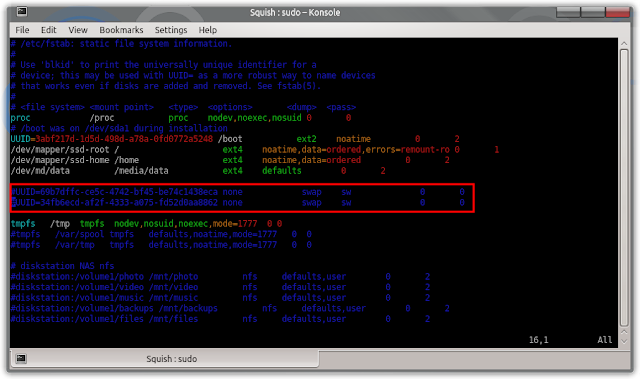
Suddenly my computer stopped responding. Then, after a long time, I got a message from Chrome that it could not allocate any more memory. I thought that was odd since I have 32GB of swap space. That is when I noticed (as you may have already) that my System Monitor was telling me that there is “No swap space available”. Interesting…

I don't think those should be commented

Not sure what I was doing or when, but clearly I forgot to undo it. I uncommented those two lines and executed:

$ sudo swapon -a

enter image description here

That is much better. Shortly after, about half a gig of memory was swapped out and things started working a lot more smoothly.