Wednesday, December 31, 2014

Getting All My Mouse Buttons to Work in Linux

Introduction

When I got my new computer I bought a Logitech m510 mouse with 9 buttons.

Logitech M510 Mouse

For day to day use, and because I had other things to get working (like my keyboard), I decided to live with the out-of-the-box functionality of the mouse. I figured that when I had a burning need to use the additional buttons, I would look into them.

Many years ago I had a mouse with two thumb buttons and it was awesome for playing TFC. I had button mapped to the two types of grenades. The setup works nicely because you are not force to hold down a button on the keyboard, while trying to also press your movement keys.

Alas, it has been many many years since I have played online games, however this weekend, I found myself playing Metro Last Light. The default mapping for the alternate weapon and melee are kind of cumbersome. Suddenly I remembered my mouse had all these extra buttons and how well they worked in TFC. Finally I had a reason to set them up.

The Setup

At first, maybe naively, I tried to map them directly in the game. Unfortunately the game did not register the button clicks at all. After a bit, I thought, No worries, I’ll just map their clicks to the buttons defaulted in the game, somehow.

Making Sure the Buttons Work

The first thing to do was to see if the buttons even register to the OS. To do that, you can use xev:

$ xev | grep button

Once the little window loads, move your mouse over and start clicking away. Sure enough all my buttons were showing up. If you find that some of your buttons are not working, you will have to modify your xorg.conf file.

Mapping the Buttons

A little Google searching revealed that there is more than one way to remap keys. I know, shocking!

I decided to start with xbindkeys

swoogan@workstation:~$ xbindkeys
The program 'xbindkeys' is currently not installed. You can install it by typing:
sudo apt-get install xbindkeys

swoogan@workstation:~$ xbindkeys
Error : /home/swoogan/.xbindkeysrc not found or reading not allowed.
please, create one with 'xbindkeys --defaults > /home/swoogan/.xbindkeysrc'.
or, if you want scheme configuration style,
with 'xbindkeys --defaults-guile > /home/swoogan/.xbindkeysrc.scm'.

swoogan@workstation:~$ xbindkeys --defaults > /home/swoogan/.xbindkeysrc

Then you just need to define the mappings in your config file. For example:

# Gren
"xte 'key c'"
  b:9

# Melee
"xte 'key v'"
  b:8

To me they seem to define things in reverse. The pattern is:

# Name
"Action I want to perform"
  Event I want to trap to perform said action

Seems like a value = name sort of arrangement, but I digress. xte is a tool that will allow you to simulate button and key presses. It’s actually intended to create fake input for testing purposes. You can read the man page here.

swoogan@workstation:~$ xte 'key c'
The program 'xte' is currently not installed. You can install it by typing:
sudo apt-get install xautomation
swoogan@workstation:~$ sudo apt-get install xautomation
swoogan@workstation:~$ xte 'key c'
swoogan@workstation:~$ c

Now my two mouse buttons fire ‘c’ and ‘v’, which will work for Metro.

Except it Will Not

After loading the game I found that the key press events (xte 'key c' and xte 'key v') do not fire when in fullscreen game mode. I have not had time to look into why and to see if there is a way around this.

Final Thoughts

There are a couple of things that I would like to refine:

  1. This one is pretty obvious, it makes more sense to map the buttons to keys that are a little more obscure. For example, a modifier key like Alt or Ctrl might be better because it would be less likely to accidentally type in a document with an errant mouse click.
  2. I would like to see if this can be configured per application. I think that, in general use, I would like these buttons to be my browser forward and back buttons.
  3. The mouse actually has two additional buttons: the scroll-wheel tilts left and right. I am not really sure what I should do with those in general use. I find the left tilt very hard to execute without also pressing the wheel down.

For the second issue, I am sure I could wrap my application with as script like the following:

#!/bin/bash
killall xbindkeys && xbindkeys -f xbindkeys.someapp
someapp
killall xbindkeys && xbindkeys

But that seems pretty messy. If I find a better solution, I will be sure to write about it.

Wednesday, December 24, 2014

PowerShell Help File Authoring Woes

Poor Documentation

I was really hoping to write some killer help for (my cmdlets)[https://github.com/Swoogan/Octopus-Cmdlets], but I did not know where to start. If you search around the web and MSDN you might find the only two “helpful” files:
http://msdn.microsoft.com/en-us/library/dd878343(v=vs.85).aspx
and
http://msdn.microsoft.com/en-us/library/bb525433(v=vs.85).aspx

I was not able to find anything in the way of blogs or community documentation. There are bits and pieces, here and there, but they are mostly geared toward advanced functions (script cmdlets).

Note that there are several flaws in the second article that held me up quite a bit. For one, they say to “add the following XML headers to the text file” and list <helpItems xmlns="http://msh" schema="maml">. This is not a header. It is an opening tag that needs to be closed at the end of the document. Second, the example does not show either of the “headers”. Would it kill them to ever give an example that is complete? Finally, the page does not indicate where this file should be saved, nor does it link to the separate document that does (the first one).

Writing a Sane Example

I do not know why it would be so hard to write:

Save the following file to SampleModule\en-US\SampleModule.dll-help.xml

    <?xml version="1.0" encoding="utf-8" ?>
    <helpItems xmlns="http://msh" schema="maml">
      <command:command xmlns:maml="http://schemas.microsoft.com/maml/2004/10" xmlns:command="http://schemas.microsoft.com/maml/dev/command/2004/10" xmlns:dev="http://schemas.microsoft.com/maml/dev/2004/10">
        <command:details>
          <command:name>Get-Something</command:name>
          <command:verb>Get</command:verb>
          <command:noun>Something</command:noun>          
          <maml:description>
            <maml:para>Gets one or more somethings.</maml:para>
          </maml:description>
        </command:details>
      </command:command>
    </helpItems>

I am not sure what the redundant name, verb, and noun nonsense is about.

And it All Goes Downhill

When I started researching I was ecstatic to learn that the format is XML. I was so looking forward to writing 100% more tags than text. Remember, it is always a good idea to make writing documentation more of a pain than it already is. There is nothing like a boatload of friction to motivate people.

Oh well, after way too much time fighting the bad documentation I finally got my help file to load. What an achievement!

Here is what the system generated documentation looks like (aka no help file):

NAME
Get-Something

SYNTAX
Get-Something [[-Name] <string[]>] [<CommonParameters>]

Get-Something -Id <Int32[]> [<CommonParameters>]

And with my file:

NAME
Get-Something

SYNOPSIS
Gets one or more somethings.

SYNTAX

DESCRIPTION

RELATED LINKS

Hey, what the heck happened to my SYNTAX??? Really? If I do not define it, it goes away? REALLY???

Once again Microsoft forces you into an all-or-nothing proposition. Want to add SYSNOPSIS fields to all your cmdlets? Boom! All your SYNTAX descriptors are gone. But the SYNTAX was perfect the way it was!!!

Good thing making documentation is so much fun, or I might have started to get discouraged at that point.

WTF???

Well the only thing left to do is find out how to document the syntax. All I wanted to do was add a synopsis to each (for now) but lets see what it would take to bring this up to snuff. Here is the document on writing syntax:
http://msdn.microsoft.com/en-us/library/bb525442(v=vs.85).aspx

That is right boys and girls, you have to take all the cmdlets, in all their variations and meticulously write XML to define the usage. Were you thinking you could maybe just copy the generated output to a syntax element like so?

<command:syntax>Get-Something [[-Name] <string[]>]  [<CommonParameters>]</command:syntax>

Hahahahahahahaha hahaha haha ha…

The best part is the you get to keep your documentation sync every time you change your cmdlets. Now I am faced with a dilema:

  1. Release my young and rapidly changing project with no documentation.
  2. Write the documentation now and have to change it over and over as the API matures.

What wonderful options.

For the record, this is what the syntax XML looks like for a single variation of a single command:

   <command:syntax>
      <command:syntaxItem>
        <command:name>Invoke-psake</command:name>
        <command:parameter require="false" variableLength="false" globbing="false" pipelineInput="false" postion="0">
          <maml:name>buildFile</maml:name>
          <command:parameterValue required="false" variableLength="false">String</command:parameterValue>
        </command:parameter>
        <command:parameter require="false" variableLength="false" globbing="false" pipelineInput="false" postion="0">
          <maml:name>taskList</maml:name>
          <command:parameterValue required="false" variableLength="false">String[]</command:parameterValue>
        </command:parameter>
        <command:parameter require="false" variableLength="false" globbing="false" pipelineInput="false" postion="0">
          <maml:name>framework</maml:name>
          <command:parameterValue required="false" variableLength="false">String</command:parameterValue>
        </command:parameter>
        <command:parameter require="false" variableLength="false" globbing="false" pipelineInput="false" postion="0">
          <maml:name>docs</maml:name>         
          <command:parameterValue required="false" variableLength="false">SwitchParameter</command:parameterValue>
        </command:parameter>
        <command:parameter require="false" variableLength="false" globbing="false" pipelineInput="false" postion="0">
          <maml:name>parameters</maml:name>         
          <command:parameterValue required="false" variableLength="false">Hashtable</command:parameterValue>
        </command:parameter>
        <command:parameter require="false" variableLength="false" globbing="false" pipelineInput="false" postion="0">
          <maml:name>properties</maml:name>         
          <command:parameterValue required="false" variableLength="false">Hashtable</command:parameterValue>
        </command:parameter>
        <command:parameter require="false" variableLength="false" globbing="false" pipelineInput="false" postion="0">
          <maml:name>nologo</maml:name>         
          <command:parameterValue required="false" variableLength="false">SwitchParameter</command:parameterValue>
        </command:parameter>
     </command:syntaxItem>
   </command:syntax>

Taken from the psake help file.

Do not worry. They know there is a problem and are thinking about improving it. It is not like they are just going to totally ignore it for eight years or something.

And yes I will look into the PSCX module mentioned in that link, but in the meantime I am going to cry.

Wednesday, December 3, 2014

Raid Setup

In Search of Speed

As I mentioned in a previous post, saying that my HDD’s volume group was on /dev/sdb1 is not quite true. Although I wanted to have a large scratch space for virtual machines and renderings, I did not want sacrifice too much on speed. Both of those operations benefit from faster disks. The cost of ssds in the 512GB - 1TB range is quite prohibitive, so I sought a compromise.

RAID

Striping

I began to investigate RAID solutions. Of course there is the obvious RAID 0 array, but I have never been a fan of striping or tying two disks together in a non-redundant way. RAID 0 doubles your risk of disk failure and makes your setup more complicated. I guess I am uneasy with it because one time back in about 2002 I got a new Seagate drive and rather than making it a new E: drive, I extended my existing volume onto it. About 2 months later, the drive started to fail and I had a very difficult time getting it out of the volume without losing all my data. Having a bad drive take out a good one is maddening.

Hardware vs Software

Before I got much further, I realized I would have to answer the question of hardware or software raid. After a quick bit of googling, some ServerFault questions and a couple of blogs, I decided on software. This blog post had a lot to do with convincing me:
http://www.chriscowley.me.uk/blog/2013/04/07/stop-the-hate-on-software-raid/

Mirroring

At this point I started to look into RAID 1 (mirroring) and btrfs. I quickly discarded the idea of btrfs because I am running Kubuntu 12.04 LTS and everything I read said I should be using a more recent kernel. I am willing to patiently wait for it to come to me in the next LTS release.

What I found regarding Linux software RAID 1 is kind of surprising. All over the web you can find benchmarks that show, counter-intuitively, that RAID 1 is not any faster that a single disk. I am only referring to reads, as it is obvious that since you write to both disks it cannot be faster in that regard. It seems most people assume, like I did, that Linux software RAID 1 would read from both disks in parallel and therefore reads could peak out at 2x.

After a little more investigate, I found out that because the data is not striped, Linux only loads data from a single disk for an individual read operation. It will use both disks in parallel for multiple read operations. So for a single large file, it will read at 1x. For two large files it can read up to 2x.

RAID 5

Since I was going for speed, that meant RAID 1 was out. With that, I started looking at RAID 5. The immediate problem with RAID 5 is the cost. With a minimum of 3 disks, the smallest array possible already costs more than a 256GB SSD. I need more than 256GB, but any solution that approaches the cost of a 512GB SSD would favour the SSD.

Unfortunately, RAID 5 with three disks has pretty dismal write speeds. Although I am mainly focusing on reads, I would like to keep the write speeds up too. I believe that adding another disk to the array would increase both the read and write speeds, but at four 1TB drives you are smack dab in the 512GB SSD price range. I would certainly have more disk space but I honestly do not need 3TB. Finally, RAID 5 suffers from long rebuild times during which, other drives can fail.

RAID 10

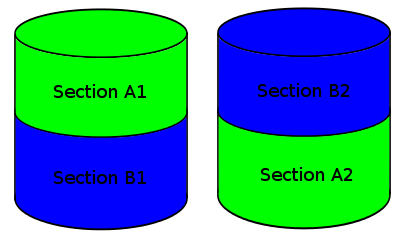
Enter RAID 10 to the picture. RAID 10 is striping over a mirrored set. Not to be confused with mirroring over striped sets. RAID 10 is fast. Reads are akin to striping and writes go at the speed of one disk. Also, rebuild times are much faster than RAID 5. Here come the downsides though. Since the disks are in a mirrored configuration, you lose 50% of the total disk capacity. Second, it requires a minimum of four disks. I don’t care about the lost disk space; I doubt I would have used it anyway. But the cost issue raising its head again was disheartening.

The whole thing began to bug me at this point. Why did RAID 1 not get the read speeds of RAID 10 (note: I hadn’t found the reason at this point)? Why did RAID 10 require four disks? I kept thinking about it and I was sure that there should be a way to configure two disks into something like a RAID 10 array that would get the same read speeds. I realized that you should be able to segment the drives into two sections each. You could mirror the data of the section of the first disk to one of the second and vice versa. You should then be able to mirror the sets.

Tasty Cake

That is when the light bulb went off. I had seen something like this when I was reading about all the Linux software raid types. I went searching again and found my holy grail:

Linux kernel software RAID 1+0 f2 layout

Aka RAID 10 far layout (with two sections). It builds a RAID 10 array over two disks.

RAID 10 F2

With this setup, the read speeds are similar to striping and the write speeds are just slightly slower than a single disk.

It turns out you can build these things in a bunch of crazy ways. You can specify the number of disks (k), copies of the data (n), and sections (f). So you could have 2 copies over 3 disks, 3 copies over 4 disk with 3 sections, etc…

Once again, software raid shows its value. Without the constraints that hardware enforce, you are free to setup your system as you please.

Epilog

I have also summarized this post as an answer to a question on serverfault: https://serverfault.com/questions/158168/slow-software-raid?rq=1

In my next post I am going to talk about performance testing my setup and a few surprises I found.

Wednesday, November 26, 2014

The Joy of Working with a "Supported" Linux Device

In Search of a WiFi Adapter

After getting an Azio keyboard, I learned my lesson. Always check to make sure a device will work with Linux. Because I was moving to a suite that only had WiFi, I was going to need to get an adapter for my workstation. After a fair bit of searching, I settled on the Asus USB N13:

enter image description here

I plugged the device into my computer and Kubuntu immediately recognized it. A few minutes later, I was on Internet. A few minutes after that, I was not. On and off this thing went, like an Internet yo-yo. Additionally, every time it connected it wanted the WiFi password again.

After searching around quite a bit, it became apparent that behaviour I was seeing was a widely known problem with the kernel driver.

Linux Drivers

My first thought was to return this thing and get something that was better supported. Unfortunately there were not any better options available to me and who knew if they would work. Apparently “Supports Linux” is a vague thing.

So I downloaded the driver from Asus’s site and tried to build it. That failed with the following:

dep_service.h:49:29: fatal error: linux/smp_lock.h: No such file or directory
#include <linux/smp_lock.h>

Since the device has a rtl8192cu chipset in it, I headed over to Realtek’s website to download their version of the driver. Right away I knew I probably was out of luck. Their website says that the driver supports Linux Kernel 2.6.18 ~ 3.9. I am running Kubuntu 14.04, which has kernel version 3.13.

I decided to try compiling it anyway, but was not surprised when I got an error. The compiler was complaining that proc_dir_entry did not exist. After a bit of search, I found that proc_dir_entry had moved to /fs/proc/internal.h. It was formerly in /linux/fs_proc.h to /fs/proc/internal.h. Turns out that file was not in my kernel headers, so I had to get the kernel source:

apt-get source linux 

Then I copied the internal.h to /usr/src/linux-headers-$(uname -r)/fs/proc. I then modified the source file to include the header. After recompiling, I got the following error:

os_dep/linux/os_intfs.c:313:3: error: implicit declaration of function ‘create_proc_entry’ [-Werror=implicit-function-declaration]
rtw_proc=create_proc_entry(rtw_proc_name, S_IFDIR, init_net.proc_net);

It turns out that create_proc_entry has been deprecated in favour of proc_create. I tried changing the call, but unsurprisingly, the interface had changed too. At that point I gave up on the Linux driver.

NDISWrapper

So I went back to the Realtek site and downloaded the Windows driver, hoping to use NDISWrapper to load them. I do not know a lot about NDISWrapper, so I downloaded the GTK frontend:

sudo apt install ndisgtk

Figuring the oldest driver interface would be the most reliable, I went for the WinXP 32-bit driver first. It immediately told me that it was an invalid driver. I decided to jump over the notoriously flaky Vista drivers and go for the Win7 32-bit driver. That also seemed to be invalid. It turns out that going for the best driver was silly. I, of course, needed a 64-bit driver for my 64-bit OS.

Knowing that WinXP 64-bit drivers also fairly hit and miss, I went straight for the 64-bit Win7 driver. This driver loaded, but failed to work. Looking in dmesg there is no error. It just fails silently.

After searching and searching, I finally found this Ask Ubuntu question:
http://askubuntu.com/questions/246236/compile-and-install-rtl8192cu-driver

User mchid points to a github repo that finally gave me a working driver:
https://github.com/pvaret/rtl8192cu-fixes

It appears that the owner of the repo simply removed all the proc code from the driver.

Conclusion

Why does the out of the box Linux driver suck so bad? Why is it not dropped in favour of the GPL one written by Realtek? Having two drivers that both do not work is asinine.

Wednesday, November 19, 2014

Installing Azio Keyboard Module with DKMS

Final Chapter in the Keyboard Saga

Last week I saw a pending kernel update and I decided enough was enough. It was time to get my Azio keyboard driver working with DKMS and stop the insanity.

It turns out that using DKMS is one of the those things that ends up being a lot easier to do that you think it will be. I am so used to easy things being hard with Linux, that I forget that some hard things are easy.

I started with the Community Help Wiki article on DKMS. They have a good sample dkms.conf file that I started from:

MAKE="make -C src/ KERNELDIR=/lib/modules/${kernelver}/build"
CLEAN="make -C src/ clean"
BUILT_MODULE_NAME=awesome
BUILT_MODULE_LOCATION=src/
PACKAGE_NAME=awesome
PACKAGE_VERSION=1.1
REMAKE_INITRD=yes

I also have a driver on my system, for a USB network adapter, that uses DKMS. It’s the rt8192 for the Realtek chipset.

I took the two sample config files and merged them together, removing the duplicate lines. Then I commented out the lines that were exclusive to one file or the other and modified the common lines to match my project. Finally, I ran man dkms and began researching what the directives on each of the commented lines did.

This is what I came up with:

PACKAGE_NAME=aziokbd
PACKAGE_VERSION=1.0.0
BUILT_MODULE_NAME[0]=aziokbd
DEST_MODULE_LOCATION[0]="/kernel/drivers/input/keyboard"
AUTOINSTALL="yes"

See how simple it is?

Next I modified my make file to build/install the DKMS module. Again, I copied from the rt8192 driver. Here’s the final Makefile target:

dkms:  clean
    rm -rf /usr/src/$(MODULE_NAME)-1.0.0
    mkdir /usr/src/$(MODULE_NAME)-1.0.0 -p
    cp . /usr/src/$(MODULE_NAME)-1.0.0 -a
    rm -rf /usr/src/$(MODULE_NAME)-1.0.0/.hg
    dkms add -m $(MODULE_NAME) -v 1.0.0
    dkms build -m $(MODULE_NAME) -v 1.0.0
    dkms install -m $(MODULE_NAME) -v 1.0.0 --force

Remind me to add a version variable!

Thanks to Dylan Slavin’s awesome contribution, the driver now has a nice install.sh script to get users up and running with minimal effort.

Go and get it.

Wednesday, November 12, 2014

Generating Documentation with Markdown and Pandoc

Introduction

Over the years I have written a lot of documentation. I would say that about 98% of it has been in Microsoft Word. The other 2% has been written in text, usually a readme.txt. I generally use text when I need a break from Word. (It turns out that I have been using a convention that is very similar to Markdown for my text documents and did not know it)

Problems with Word

For me, Word has been a necessary evil. I do not feel that it is a great tool for documentation. I find that I spend too much time and get too distracted with formatting. In particular, converting code to fixed-width consumes a lot of time.

For clarification: I am referring to documentation written by developers for developers on the same team. I am not referring to API documentation for external developers or end user documentation.

The other large issue I have with Word is that the file format is binary. I firmly believe that documentation should live as close to the source code as possible. For this reason I prefer storing documents in source control over an external wiki (or some lesser repository). But that means putting binary files in source control, and as you likely know by now, that causes problems with branching and merging. Specifically, most source control systems do not know how to merge binary files.

One of the reasons that I believe documentation should live with source code is specifically the case where you are branching the code. Take feature development for example. Suppose that a code change in a branch causes the documentation to change. If you have stored your documentation external to the code you are now faced with a dilemma. Do you change the doc to reflect the as-is state or the to-be? One or the other will be wrong. How will people know? Technically, you could put both in. However, once you merge you will have to remember to remove the old documentation. (Of course, the problem only gets worse if you have additional branches)

Now suppose that a bug fix causes a change to the documentation in the mainline branch. Again you are faced with the problem of deciding where this change goes. On the other hand, if it is in source control you are in a situation where the documentation needs to be merged. This brings us back to the problem with Word’s binary files. Again, they cannot be merged, and speaking from experience, large documents are very hard to merge manually.

Down the Hill We Go

Further options seem to go from bad to worse. I have seen Word documents stored on shared network drives. To me this is the worst of the worst. You are still stuck with Word, but now you have no version control at all. Furthermore, a strange thing seems to happen in this case: people stop collaborating. Suddenly, rather than change the document themselves, people start emailing changes the original author. It is a peculiar behaviour I have noticed.

Then there are all the external repositories, things like SharePoint. You do get the versioning back, but still lose the branching and merging capability. Another worst of the worst is the SharePoint wiki. Even more cumbersome to use than Word. At that point you are better putting Word documents in source control. Or alternatively, getting a usable wiki system. Or painting on cave walls.

In summary, the my order of preference:

  1. A branchable/mergable format in source control
  2. A binary file in source control
  3. Wiki
  4. Sharepoint (or similar) document repository
  5. Cave drawings
  6. Sharepoint wiki
  7. Network share

Alternatives to Word

Several alternatives to Word exist, however very few are available “out of the box” in most organizations. That has lead me in the direction of text with some sort of markup.

Text

I only recently encountered Markdown. Prior to that I was using my own syntax that was quite similar (which is not surprising given that they both have the same source: text email conventions). Marking up text is good, but not great. It can be branched and merged, but _I am italics_ does not scream out italics to everyone.

HTML

Another option is writing HTML. Again it is text with markup. However, HTML has two problems:

  1. If you think writing formatting Word documents is a pain, give HTML a whorl. (I suppose you could use an editor, but I am picturing hand written)
  2. It is not the input format for the final document. It is the document.

Now the second point is sort of moot if you think of a browser as the document viewer. There is not much difference between loading an HTML file in Chrome and loading a PDF in Acrobat. However, this does differ from the experience that you get with a tool like…

LaTeX

I finally got fed up with Word last year and began to look for a replacement. The idea of writing in text and generating a PDF (or some such document) was where I kept landing. Since Tex and LaTex are king, that is where I looked.

Things never really got off the ground with me and LaTeX. There are two connected issues I have with it:

  1. The syntax is complex. Not overly complex, but complex enough.
  2. Because of #1, I could not see getting it absorbed into the organization I was working for. Remember, I want to store the text files in source control.

PostScript

The last thing I looked at was writing PostScript by hand. This way I would store them in source control, but everyone else would think they were PDFs. However, PostScript is a little too cumbersome to write by hand (RTF would have the same issue).

At this point I put my search on hiatus. I had spent enough time, in vain, looking for alternatives. It was time to get back to work and that meant suffering through Word.

Enter Markdown

Introduction

It has been about six months since I had to write any developer documentation. Last week I wrote a bit of documentation for my current client and realized I did not know where to put it. I fired off a quick email to my manager asking where such things should live.
His answer:

You can create some Word docs… We can check those into TFS or put them up onto a SharePoint.

I might have cringed a bit.

Markdown

Here I was, once again looking at my old nemesis. To the web I went. I quickly found this discussion on StackOverflow:

http://stackoverflow.com/questions/12537/what-tools-are-used-to-write-documentation

The answer from Colonel Panic, in particular, caught my eye:

I write in Markdown, the same formatting syntax we use on Stack Overflow. Because the documents are plain text, they can live alongside code in version control. That’s useful.

I render the documents to HTML and PDF with the swiss army knife Pandoc. With a short stylesheet, these look better than documents from word processors.

Well now, what have we here? This is perfect! A simple markup that I already know and the ability to convert them to the format bosses love. I was sure that PDF would be an acceptable format but quick check of the website revealed that pandoc also supports conversion to DOCX (and about 25 other formats).

Pandoc

I downloaded and installed the Windows msi on my machine. Loading PowerShell, I found that it was not in the path. The documentation implies that it should just be there, so I checked the path from the system settings and found it was there. I am not sure why PowerShell was not picking it up. So… when in doubt, reboot.

Next I created a simple Readme.md and ran

pandoc Readme.md -o Readme.docx

And sure enough I have my Word doc. I could not be happier.

Next I tried

pandoc Readme.md -o Readme.pdf

Unfortunately, that resulted in the following error:

pandoc.exe: pdflatex not found. pdflatex is needed for pdf output.

First I found a blog recommending I download protext.exe from http://tug.ctan.org/tex-archive/systems/win32/protext/ The file is 1.7GB. Something smells fishy. If there is not a copy of Debian Linux in there I am going to say it is a little too big for my taste.

Then I landed back at the pandoc installation page, where is says

For PDF output, you’ll also need to install LaTeX. We recommend MiKTeX.

I opted for the 64-bit Net installer to see if I could trim down the download a bit. Still, 158MB is better than 1.7GB (11.01 times better to be somewhat exact). I chose the basic install and picked a mirror nearby. In the end I have no idea if that saved anything. I am guessing not. I still feel that it is way too heavy of a requirement for another application. I also have a hard time believing all that weight is necessary. For reference, the source for txt2pdf. A more comparable example would be wkhtmltopdf that clocks in at 13MB. I digress…

After installing it I once again had to reboot (I tried logging out but Windows just sat at the logging out screen until I rebooted). After rebooting I ran:

pandoc Readme.md -o Readme.pdf

This time MikTeX popped up a few times asking to install additional packages. After that, I had my PDF.

Conclusion

Now I just need to figure out how to do the same thing with Visio. For reference, this video pretty much sums up my experience using visio. I think it might be more annoying to use than iTunes.

Wednesday, November 5, 2014

TFS: Remapping a Folder not in Your Workspace

A week ago I created a solution through Visual Studio. It put the project in the typical place: C:\Users\swoogan\Documents\Visual Studio 2012\Projects. After sketching out a rough draft, I added the solution to source control. The area in TFS that I added it to is already mapped to another location on my harddrive via a Workspace.

Some time later I went to open the solution from Windows Explorer and I could not find it. I was looking in the local folder defined by my workspace and not my projects folder, as I was thinking about where it is in source control, not where I created it from.

When I looked in Source Control Explorer it was clear that it was mapped to the Visual Studio 2012\Projects that I had originally created it in. What I wanted to do was wipe that mapping out and download it to it’s proper location. Somehow TFS was overriding my Workspace mapping.

I quickly checked my Workspace definition for the folder, but it was not listed. VS/TFS seemed to be storing the mapping somewhere else. I vaguely remember that TFS had that capability going back to at least VS 2010. However, I also recall that in VS 2010 you could right-click the folder in Source Control Explorer and there was a Mappings option there. Hunting all over the VS 2012 did not reveal similar functionality. I am sure it is in there somewhere, but I could not find it.

I did a brief search online, but the immediate results dealt with manipulating Workspaces. This was a very specific problem and I knew the cause. I also knew finding the solution via searching was going to be tricky.

Therefore, I first decided to try out an idea I had. I figured that if I could disconnect the Projects folder copy and Get Latest, TFS might re-download the folder to the folder mapped by my Workspace.

There is a hidden “feature” in Visual Studio for unmapping a folder from source control. For whatever reason they did not include a way to do this easily. Once you create a Workspace mapping for a folder and do a Get Latest there is no obvious way to undo this action. Deleting the files from Source Control Explorer also deletes them from TFS. Deleting them from the filesystem just confuses TFS; it thinks they are still there.

To unmap a folder from TFS, you must use the Get Specific Version feature. They have moved this around on various versions of VS, but basically you will find it by right-clicking. It may be buried in the Advanced submenu. From there you change Version->Type to Changeset and enter 1 in the Changeset field. Finally click the Get button. This deletes the local files and greys out the folder in Source Control Explorer.

enter image description here

I immediately noticed that the mapping was gone in Source Control Explorer and the path that it was listing was the folder that I wanted to use. I was then able to do a Get Latest on the folder and download all the files to the correct place.

enter image description here