Wednesday, September 24, 2014

Local DNS Stops Working After Kubuntu 14.04 Upgrade

The Case of the Disappearing Synology

So the wife informs me that she cannot access our Synology server. Normally that would not bother me but I happened to be on the other side of the country for business. Being the tech guy around the house has its annoyances but when you are 2600 km away for work it can be downright frustrating. Not one to get between the misses and her TV shows, I remoted in.

After having her verify that it was on, I began investigating. The machine normally shows up on the network as diskstation so I tried pinging it. There was no reply. Next I tried resolving the hostname. Nothing. That was really weird because before I left everything was working. External DNS seemed fine, it was just internal DNS that was not working.

Internal DNS is handled by our Asus wireless AP. Its IP address is 192.168.1.1 as it sits behind the telco’s ADSL “modem”. I connected to the Asus and verified that the diskstation was registered there as connected device. Next, I checked /etc/resolv.conf. It used to have the Asus’s IP but now it had local IP, 127.0.0.1. Since external DNS was resolving and the system was set to resolve via the localhost, that told me we are now running a DNS server on the machine. That struck me as very odd since I never set one up. There was no need to. I have a DNS server running on the Asus (and actually working).

swoogan@laptop:/etc/NetworkManager$ ps aux | grep dns
nobody    2366  0.0  0.0  38080  3540 ?        S    11:05   0:00 /usr/sbin/dnsmasq --no-resolv --keep-in-foreground --no-hosts --bind-interfaces --pid-file=/run/sendsigs.omit.d/network-manager.dnsmasq.pid --listen-address=127.0.1.1 --conf-file=/var/run/NetworkManager/dnsmasq.conf --cache-size=0 --proxy-dnssec --enable-dbus=org.freedesktop.NetworkManager.dnsmasq --conf-dir=/etc/NetworkManager/dnsmasq.d 

Apparently I am now running a dnsmasq server locally. Very interesting.

swoogan@laptop:~/$ cat /var/run/NetworkManager/dnsmasq.conf 
swoogan@laptop:~/$ 
swoogan@laptop:~/$ ls /etc/NetworkManager/dnsmasq.d
swoogan@laptop:~/$ 

Ok, how exactly is this the configured?

I began to suspect that since her machine uses wifi, and its networking is controlled by NetworkManager, that it was doing something. So I searched online about NetworkManager, dnsmasq and find out that there is another tool in the mix called resolvconf. I had never heard of this tool.

What is this? The Microsoft school of networking? Need 17 components, with 17 points of failure, to get something simple working?

So I continue down the rabbit’s hole:

swoogan@laptop:~$ ls /etc/resolvconf
interface-order  resolv.conf.d  update.d  update-libc.d
swoogan@laptop:~$ cd /etc/resolvconf/resolv.conf.d
swoogan@laptop:/etc/resolvconf/resolv.conf.d$ ls
base  head  original
swoogan@laptop:/etc/resolvconf/resolv.conf.d$ cat base
swoogan@laptop:/etc/resolvconf/resolv.conf.d$
swoogan@laptop:/etc/resolvconf/resolv.conf.d$ cat head
# Dynamic resolv.conf(5) file for glibc resolver(3) generated by resolvconf(8)
#     DO NOT EDIT THIS FILE BY HAND -- YOUR CHANGES WILL BE OVERWRITTEN
# Generated by NetworkManager
leha@laptop:/etc/resolvconf/resolv.conf.d$ cat original
domain gateway.2wire.net
search gateway.2wire.net
nameserver 172.16.1.254

Well is that not interesting? That is the information that used to be in my /etc/resolv.conf before I bought the Asus modem. After the asus modem, dhcp changed it to 192.168.1.1. Where the heck did it get this from? And why now, several months later?

swoogan@laptop:/etc/resolvconf/resolv.conf.d$ sudo mv original ~/
swoogan@laptop:/etc/resolvconf/resolv.conf.d$ ls
base  head
swoogan@laptop:/etc/resolvconf/resolv.conf.d$ echo "nameserver 192.168.1.1" | sudo tee tail
swoogan@laptop:/etc/resolvconf/resolv.conf.d$ ls
base  head  tail
swoogan@laptop:/etc/resolvconf/resolv.conf.d$ cat tail
nameserver 192.168.1.1

I just guessed at the name tail, given head and base. After that, the host diskstation was resolving. I do not know how or when this happened but it was after the upgrade to 14.04. The weird thing is that it was a while after the upgrade.

Wednesday, September 17, 2014

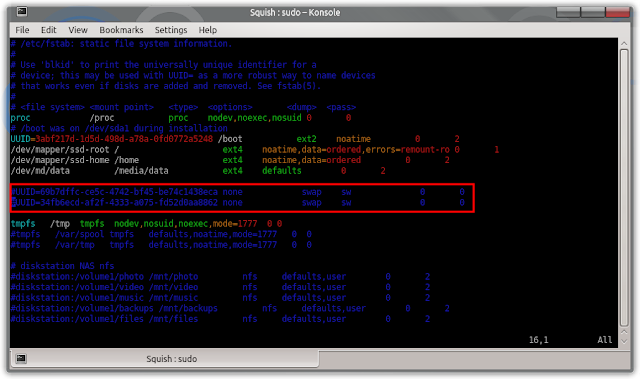
Swap is Good

Was going to take a screenshot showing how I really almost need an upgrade when things went off the rails…

Dangerously close to running out of memory

Suddenly my computer stopped responding. Then, after a long time, I got a message from Chrome that it could not allocate any more memory. I thought that was odd since I have 32GB of swap space. That is when I noticed (as you may have already) that my System Monitor was telling me that there is “No swap space available”. Interesting…

I don't think those should be commented

Not sure what I was doing or when, but clearly I forgot to undo it. I uncommented those two lines and executed:

$ sudo swapon -a

enter image description here

That is much better. Shortly after, about half a gig of memory was swapped out and things started working a lot more smoothly.

Saturday, September 13, 2014

Azio L70 Keyboard Linux Driver, The Implementation

Implementing the Azio Driver

At this point I was ready implementing the Azio driver, so I copied usbkbd.c to a file called aziokbd.c and began making edits there. I left the driver in drivers/hid/usbhid to make compiling easier. Obviously I changed the script from last time to work with a module named aziokbd instead of usbkbd.

This is where developing in a virtual machine had a hidden benefit. I could easily toggle the USB passthru from the VirtualBox menu and thereby simulate plugging and unplugging the keyboard from the guest machine. Unfortunately this hid a problem from me that I will get to later.

To implement the driver, I just had to change the lines in usb_kbd_irq to report the correct keycodes for the bytes coming in from the hardware with input_report_key. I already had the pattern worked out from reverse engineering the protocol with wireshark and usbmon.

The Azio keyboard breaks the keys up into three chunks. When the first byte in the array is 01, it is a volume control. When it is 04, that is a “regular” key like a-z, 0-9, etc… Finally, a 05 indicates the function keys and numpad. In the driver I simply broke these three cases out into their own respective if/else if branches. Since the volume only has two controls (up and down) I did not do anything fancy and just implemented them naively. For the other two cases I used the bitmasking trick and went through the remaining 7 bytes in the array.

The real trick was setting up the keycodes in the usb_kbd_keycode array such that with a little math I could easily correspond an incoming bit with the outgoing keycode. I did that by arranging the keycodes into 8 rows of 8. The first 64 elements were for byte arrays starting with 04, the second 64 were for byte arrays starting with 05 and the rest remains unused (other than the two volume keys).

With the keycodes structured this way I could index into the array by taking the position of each bit and multiplying it by it by the position of the byte I was inspecting. For 05 keys, I just had to offset the indexing by 64 to move to the next 8x8 block in the array.

Using the Driver

Once that was complete I was able to compile and begin using my driver. As a matter of fact, I was already using the driver by this point. About the last half of the driver development was done with the Azio keyboard and my driver. Whenever I encountered a key that was not yet implemented I used the secondary keyboard. That would cause enough pain to implement the key. The implementation outlined above was the result of some refactoring and not the original algorithm. The only thing left was to get the LEDs for the lock keys working.

This was a pretty exhilarating milestone in my little project. At this point I ditched the VM and moved development to my workstation proper. This was when I discovered a second thing that was not working right. This is the issue I was referring to earlier, that the VM hid from me. The generic usbhid driver was always grabbing the keyboard first and the azio driver was not loading. Even after running modprobe aziokbd, my driver was not getting access to the physical device.

ZOMG! Quirks are Quirky

This turned into a massive time sink. It is one that I am not sure I have escaped even to this day. If you search online for blacklisting a USB device you will find a lot of other people searching online for how to blacklist a USB device. Nobody really seems to know. In fact there appear to be two ways of doing depending on if the driver is compiled into the kernel or as a module. What you will find is that there is this thing called USB quirks. What you will not find is a consistent, well documented, and clear way to apply a “quirk”.

Unfortunately, even though I have got this working, it still feel as though I do not have it nailed down. Blacklisting works passing a option to the usbhid driver called “quirks”. The first part of the option’s value is the 16-bit USB vendor id, the second part is the 16-bit product id and third part is the “the u32 quirks value”. You can read the sum total of the documentation on this, that exists in the entire world, on lines 178-188 of hid-quirks.c. What are the valid u32 quirks values and what do the values mean? Apparently nobody knows. If you know where they are documented, please email me. I would very much like to know. There are just faint whispers on the wind that this is how you do it and some people have had success.

The USB vendor and product ids are easily obtained by running lsusb -v and finding your device (assuming it is plugged in). Many places on the web will tell you that the magic number is 0x0004. I am here to emphatically tell you that 0x0004 DOES NOT WORK… EXCEPT WHEN IT DOES!. Honestly, at this point I do not know what to tell anyone.

In sum, the command looks like this:

quirks=0x0c45:0x7603:[MAGIC_NUMBER]

You can pass it to the driver on the commandline by placing it after the driver name when calling modprobe, like so:

sudo modprobe usbhid quirks=0x0c45:0x7603:[MAGIC_NUMBER]

Since the usbhid driver will already be loaded, the full command is:

sudo rmmod usbhid && sudo modprobe usbhid quirks=0x0c45:0x7603:[MAGIC_NUMBER]

This is a good way to test it out and make sure that you have the quirk right, but eventually you will want this thing to just work at boot up. To do that, you put the quirks into file in /etc/modprobe.d. I created the file usbhid.conf with the following contents:

options usbhid quirks=0x0c45:0x7603:[MAGIC_NUMBER]

Here is the weird and confusing part. On my VM I had success with the magic number of 0x0007. To this day I can go back through my bash command history and see where I issued it many times. Furthermore, if I look at my /etc/modprobe.d/usbhid.conf it has the following line:

options usbhid quirks=0x0c45:0x7603:0x0007

It is working on my VM as I write this. I can passthru the L70 keyboard and reboot the VM and it works.

Transitioning to the Workstation

For some reason when I switched to my development workstation the quirk was not working. At that point I just sort of gave up. I would just load the driver with the commandline (except it was slightly more complicated because I had to also unload and load my mouse driver) and then sleep my machine.

Eventually that became a hassle and I got tired of having two keyboards attached to the computer and I sat down one night with the goal of solving it once and for all. I spent another several hours searching and loading and tweaking before I was ready to give up. I thought why does this work on the VM and not my desktop? Although I swear I copied the original file from the VM, I thought it time to compare the two. Sure enough I noticed the magic number was different. So my workstation’s /etc/modprobe.d/usbhid.conf looked like this:

options usbhid quirks=0x0c45:0x7603:0x0004 

I never did notice that I was using 0x0007 on the commandline but the file was using 0x0004. When I changed the four to seven it suddenly started working.

I know you are thinking at this point you are kind of an idiot, but to this day I am sure that I would have started from the same working point on the VM and that I only began researching a second time when it did not work. However, I cannot rule out the notion that I put that stupid 4 in there to begin with and that was the problem the whole time.

Damn you Quirks!

Now here is where it gets interesting. The other day I upgraded to kernel 3.13.0-15 and my keyboard stopped working. Although I had much better things to do that night I spent the evening trying to figure out why, hours went by and I felt like it was groundhog’s day. But this time was a little different. Nothing would let me load that driver. I never figured it out and finally went to bed.

The next day I saw there were updates and one of them was a new kernel, 3.13.0-16. I installed, rebuilt the driver and loaded it, but the keyboard was still not working. Looking at the dmesg trace I could see that the usbhid driver was grabbing it before the azio driver was loaded. This was not supposed to be happening with the quirk in the config file. Since I only rebooted about 700 times in the last two days I figured What the heck? I will change that seven to a four. It’s about the only thing I haven’t tried. You already know it worked, right? So here I am, typing this blog post with a usbhid.conf that looks like this:

swoogan@workstation:~$ cat /etc/modprobe.d/usbhid.conf 
#options usbhid quirks=0x0c45:0x7603:0x0007
options usbhid quirks=0x0c45:0x7603:0x0004

Let’s just say I am waiting for the day where I will be switching those two around. I still find it hard to believe that the command that did not work now works and that I have two different quirks on the two machines. It is worth noting that the VM uses a much older kernel.

Lighting up the LEDs

Figuring out the LEDs was a little tricky. Again I did not know where in the driver that I should be looking at. There are a couple of places where the constants LED_NUML, LED_CAPSL, and LED_SCROLLLare used so I littered the area with printk statements. After more and more printk statements and toggling the lock keys a few dozen times, I narrowed it down to the line kbd->cr->wIndex = cpu_to_le16(interface->desc.bInterfaceNumber);. It seemed that desc.bInterfaceNumberwas not holding the value that should be passed in. After little more tinkering, I got the LEDs to work by simply hardcoding 0 instead. The final line is

kbd->cr->wIndex = cpu_to_le16(0);

I will be honest and say that I do not know why that works or if it really does work in all cases. But it seems to work.

Building the Driver “Out of Tree”

To build a Linux driver outside of the kernel source tree you just need an appropriate makefile. I just created a folder in my standard development area on my machine for the Azio driver. I then moved my aziokbd.c file into it and created a Makefile. To be honest, I shamelessly copied someone else’s makefile. I do not even remember where I got it from.

The only thing I did was changed whatever was in obj-m to be aziokbd.o and added an install target:

install:
    cp aziokbd.ko /lib/modules/$(shell uname -r)/kernel/drivers/input/keyboard
    echo 'aziokbd' >> /etc/modules
    depmod

Final Steps

Now we get to today. I am using my Azio L70 keyboard daily and quiet enjoying the fact that I wrote the driver for it. However, there are two tasks I still have to work on:

  1. Fix the Meta key. It was working but has recently stopped functioning.
  2. DKMS

DKMS is dynamic kernel module support, which is a way for source code modules to be built dynamically when a new kernel is installed. If your module is not in the kernel, it is not included with system updates. If you have built it from source, it only gets built for a specific version of the kernel. This means that without DKMS you have to rebuild it every time you do a kernel upgrade. In my case it is particularly cumbersome because my keyboard is blacklisted from the generic usbhid, so after a kernel update it stops working.

If you are interested, check out the driver project page.

You can clone the repostoriy with:

hg clone https://bitbucket.org/Swoogan/aziokbd

Wednesday, September 10, 2014

Azio L70 Keyboard Linux Driver, The Setup

Introduction

In parallel with reverse engineering the keyboard protocol I began to investigate how to implement a USB driver for Linux. I assumed that someone had already written a blog post about it and I could just follow their instructions. While there are a few out there, there are not as many as you would think.

The first thing that you will find when searching for how to write a USB driver is that there are two types, kernel mode and user mode. Many USB devices can be operated in user mode. Things like cameras, dart guns, fans, etc… are all candidates. Keyboards on the other hand, not so much. Well, as long as you like to use your keyboard for things like booting, operating grub, logging in, and whatnot.

Most of the information out there points you in the direction of making a user mode driver. When you find someone asking how to implement a USB driver they are quickly steered in the direction of writing a user mode one. Which is great for them, as they are much simpler to implement but not great if you really need to implement a kernel level driver.

Linux USB Drivers

I realized that I was going to have to dig deeper and really understand how USB in general works and specifically how USB drivers work at the kernel level. Thankfully there is a terrific resource for that. Do not be put off by its age, it is still very relevant:

Programming Guide for Linux USB Device Drivers By Detlef Fliegl

Not a very inspired title but you have to love it when people get to the point.

I read the entire document. It really demystifies a lot of the aspects of USB. In particular, the most important part is section 2 where it explains the device driver framework and the data structures used.

Along with Detlef’s document, I used Matthias Vallentin’s excellent blog post on Writing a Linus Kernel Driver for an Unknown USB Device from 2007. I have to say, re-reading his article for this blog post makes me feel like I have a long way to go in terms of blogging skills. In spite of the fact that Matthias was writing a driver for a dart gun, and I a keyboard, he clearly has a deeper understanding of the underlying driver mechanics.

Some similar information can be found in the Linux Magazine article Writing an Input Module and Michael Opdenacker’s slides on Linux USB drivers.

Since I predominantly learn by example, it was time to dig into some code. This truly is the beauty of open source. I cannot imagine trying to do something like this in a closed source ecosystem.

Getting Started


Development Environment

First, I set up Kubuntu in a VirtualBox VM. I was worried that I might make a mistake with the driver and bring my whole machine down, so isolating it in a VM seemed prudent. Next I connected a second keyboard to my system. That way when I passed the Azio keyboard through to the guest OS I would still be able to interact with the host machine.

To start, I downloaded the Linux source code to my development machine. The command on Kubuntu is:

apt-get source linux

This will download the kernel source to the current working directory and apply all of Ubuntu’s patches.

You also need to make sure you have all the build tooling installed. Nowadays it comes down to a single command:

sudo apt-get build-dep linux-image-`uname -r`

I then began spelunking around the kernel source code. The drivers directory seemed like a good place to start. Indeed, I found two files in particular that were instrumental in getting my own driver implemented. The first is the generic USB keyboard driver found at drivers/hid/usbhid/usbkbd.cand the second is the Sega Dreamcast keyboard driver found at drivers/input/keyboard/maple_keyb.c

Digging into the Existing Drivers

I found a kernel function called printk that allows you to write messages from the driver. I littered the existing usbkbd driver with printk statements to figure out where and what I would need to change in order to get the keyboard working. The messages are available from the dmesg command. On Kubuntu they are also written to /var/log/dmesg so I was able to load the driver, run

tail -f /var/log/dmesg

and watch for the debugging statements.

Compiling the Existing Driver

The real trick was compiling the little bugger. I did not want to build the entire kernel as that is very time consuming (and unnecessary). I did not even want to build all the drivers, or hid drivers. I just wanted to build the usbkbd.c driver and load it. After a lot of searching I found that you can build it with the following command:

make modules SUBDIRS=drivers/hid/usbhid

Sweet, just the one sub directory! Just load the module with:

sudo insmod drivers/hid/usbhid/usbkbd.ko

And promptly get the following error:

insmod: error inserting ‘usbkbd.ko’: -1 Invalid module format

After lots and lots and lots of searching, with a bunch of red herrings thrown in, I found that it is not really the wrong format, it is just that the version of my precompiled kernel and the version of the module were not in sync. I found the solution in the Kernel Module Programming Guide, section 2.8 Building modules for a precompiled kernel. I needed to add Ubuntu’s version suffix. In my cases I was running patch 56 with the generic kernel, so I had to add EXTRAVERSION=-56-generic

With that problem solved I could, for the first time, load a kernel module with my edits and peer into its inner workings. I began making rapid edits whereby I was unloading, compiling, and re-loading the module in rapid succession. I created a script in the root of the Linux source tree, called rebuild, with the following contents:

#!/bin/sh

make EXTRAVERSION=-56-generic modules SUBDIRS=drivers/hid/usbhid 0=~/linux-3.2.0
sudo rmmod usbkbd
sudo insmod drivers/hid/usbhid/usbkbd.ko

*the 0= just points to the root of the Linux source tree

Do not forget to chmod +x ./rebuild to make it executable.

Understanding the Generic Driver

Generic driver, usbkbd.c, from the Linux kernel source.

The function where the magic happens is static void usb_kbd_irq(struct urb *urb). It is executed with every USB interrupt (see my previous post in this series for a more detailed description of USB interrupts). The urb struct is the USB Request Block and it holds all the information about the keypress (in this case). The function first checks the status of the URB. There are several statuses upon which it simply returns. Once that gate is cleared, the actual key code handling is executed.

The driver stores the interrupt’s key codes in the URB’s context pointer. There are two byte arrays new and old that hold the current and previous key codes, respectively. At the beginning of function the urb->context pointer is copied to the local variable kbd.

struct usb_kbd *kbd = urb->context;

All of the keycodes are stored in a 256 byte array, usb_kbd_keycode, declared earlier in the driver. Finally, input.h includes a function to report the keycode the kernel called input_report_key. The first argument is the keyboard device pointer, the second is the keycode and the third is either a 1 or 0 depending if the key is down or up.

The driver contains two loops that execute to determine the key codes and their states. The first loop, uses a neat little C trick that I employed too: (kbd->new[0] >> i) & 1It takes the first byte in the keycode, bit shifts it by 0 through 7 and masks the result with 1. If the mask results in a 0 the key is up and 1 it is down, so it just reports that to the kernel. The actual keycodes in the array are offset by 224, so it adds that to i when indexing usb_kbd_keycode. These keys represent the modifiers keys like Alt and Ctrl.

for (i = 2; i < 8; i++) {
 if  (kbd->old[i] > 3 && memscan(kbd->new + 2, kbd->old[i], 6) == kbd->new + 8) ...
  input_report_key(kbd->dev, usb_kbd_keycode[kbd->old[i]], 0); ...
 if (kbd->new[i] > 3 && memscan(kbd->old + 2, kbd->new[i], 6) == kbd->old + 8) ...
  input_report_key(kbd->dev, usb_kbd_keycode[kbd->old[i]], 1); ...
}
The last part of the function copies the incoming keycode into the old array for the next iteration.
 
memcpy(kbd->old, kbd->new, 8);
Once I had a firm understanding of how the existing driver worked, I was able to implement my own. I will cover that in the next and final post in this series.

Wednesday, September 3, 2014

Reverse Engineering the Azio L70 Keyboard Protocol

To recap, I bought an Azio L70 Gaming Keyboard and discovered it did not work with Linux. I set out write a kernel driver for it; starting by capturing the usb packets with usbmon and WireShark.

When I finally figured out where the actual key-codes were in the packets it was not very hard to figure out the pattern. I had both a standard usb keyboard (that functioned in Linux) and my new L70 both attached to my computer. I could strike keys on either and watch the different patterns.

The Left Over Data portion of the usb packets were 16 hex digits long (8 bytes). The regluar keyboard sent packets like so:

a -> 00 00 00 00 00 00 00 01
b -> 00 00 00 00 00 00 00 02
c -> 00 00 00 00 00 00 00 03
d -> 00 00 00 00 00 00 00 04

The Azio was sending packets like this:

a -> 04 00 01 00 00 00 00 00
b -> 04 00 02 00 00 00 00 00
c -> 04 00 04 00 00 00 00 00
d -> 04 00 08 00 00 00 00 00

Once the pattern became obvious, so did the reason why the keyboard requires a device-specific driver. In fact, there was a hint right on the packaging. The L70 is billed as a gaming keyboard with “n-key rollover”. Not only that, but this rollover functioned over USB.

When I bought the keyboard and started on this little endeavor I did not even know what rollover was, let alone n-key rollover. For those not in the know, I will attempt to explain.

First a little history lesson…

At one time, PCs used a port called PS/2 for keyboard and mouse input. The PS/2 port used a BIOS-based interrupt mechanism to report key-presses to the system. When at key was pressed the keyboard interrupted the computer with the key code. If you smashed down 10 keys, the keyboard, insomuch as it had internal buffer to maintain the information, would dutifully report each key as unique sequential interrupt. Therefore, all keyboards had n-key rollover, or the ability to press N keys at once and have the OS receive them correctly.

Then came USB keyboards and mice. USB is still a serial protocol but unlike PS/2 it is a polling-based protocol. Rather than being interrupted by the device, the OS is responsible for constantly checking the bus to see if there is any information on it. This causes problems for rollover, aka multiple key-presses, on USB keyboards. What happens is that the key presses can pile up, and in fact, essentially change. At least that is my understanding. For example, take the keyboard input above. Key A sends a key code of 1. B and C send 2 and 3 respectively. Therefore, pressing A and B simultaneously might cause the system to see a 3 (or C) rather than the separate key presses.

The only way to work around this limitation is to write a different protocol. One where every key-press is unique and no combination of keys will produce another key’s code. This is exactly what Azio did. The 1,2,4,8,… pattern seen above is obvious to anyone familiar with bit masking.

Other companies take another approach. They include a PS/2 converter and advertise their product as having, most typically, 6 key rollover on USB and n-key rollover on PS/2 (with the adapter). This is the route that both DAS and Code took. Consequently they work with Linux and the standard USB keyboard driver.

One thing that still bugs me is that I never determined how it was that the keyboard functioned as much as it did. Why, when it was giving so different of input, did the vast majority of keys function? Remember, it was only the Ctrl, Alt and Meta (Windows) keys that did not operate.

Once I had the protocol reverse engineered it was then a matter of writing a Linux USB device driver. I will cover that in a later post.

Friday, August 22, 2014

Capturing the Azio Keyboard Data

By the time I had replaced every component of my computer, including the mouse, I thought hey, why not the keyboard too? As I mentioned in the first part of this series of posts, I got an Azio L70 Gaming Keyboard. The last thing I expected was for it to not work on Linux. To be honest, it did not even occur to me that might be a possibility. I scrutinized every single piece of hardware I bought for my new computer, making sure they would all place nice with Kubuntu, except the keyboard.

Mistakenly I thought all keyboards used a standard protocol. Although, the device reported itself as a standard HID compliant device, the Linux usbhid driver was not receiving all key-presses. In particular the Ctrl, Alt and Meta (Windows) keys did nothing.

After verifying on Azio’s website that Linux really was not supported, I made the decision to attempt to write a driver for it. The first step toward my goal was reverse engineering the protocol. Again, it clearly was not standard, so what was it?

In order to understand what was going on I needed some way to read the raw I/O that was going over the USB bus. After a brief bit of searching, I found out that with the usbmon driver, Wireshark can do just that.

See: http://macgyverque.net/2012/12/03/monitoring-usb-traffic-using-wireshark-under-linux/

There were a few hoops to jump through in order to get things to work. First, ensure that you have the usbmon kernel module installed. I will leave it as an exercise for the reader to determine the specific instructions for their distro. You will also need to insert the module into the kernel, if it is not by default. On Kubuntu I ran:

$ lsmod | grep usbmon
$ sudo modprobe usbmon

When you first run Wireshark you will not see any interfaces to capture. You need extra priviledges to do that. This makes sense since you are accessing the hardware at a pretty low level and could read other users’ io. So close it down and run:

$ sudo wireshark

You will get an error right off the hop, and a tip about running as an unpriviledged user (I am guessing they disable lua as it is a programming language and we all know what happens when you run macros as a superuser, *cough* MS Office *cough*)

Lua Error

Unless you are going to do a lot of capturing, you can do what I did and just ignore the error. At which point, you will get the next dialog, this time a warning:

I am sure there *is* a better way. But reading a doc would take time and I have got better (and more fun) things to do.

[Aside: they need to sick a UX designer on these dialogs. They are all messed up]

Now you can actually start a capture. You do this by going to the Capture menu and clicking the Interfaces option. This will bring up ridiculously sized dialog that you will first have to make bigger (every time!). Once that annoyance is out of the way, you will see all of your usb and network interfaces. There are often many usb interfaces and it can be a little tricky to find which is the device you are looking for. Basically you will want to interact with the device and watch the Packets column on the dialog. You might have to try a couple, but basically you are looking for the one who’s packet count goes up while using the device in question.

Finding the right usbmon interface

When you have narrowed it down to an interface you want to try, just click the start button and that will begin the capture process.

Now the fun part begins.

The hardest part of this whole process was figuring out which of the various packets had the info I was looking for. First, because driver responds back the the keyboard with each keypress, you have to figure out who’s who. In other words, which packets are from the keyboard and which are from your computer. Once that is sorted out, you have to figure out which packets the keyboard are sending have the keypresses in them (there are a bunch of control packets in the mix) and finally you have to find out what part of the packet has the code for the key that was pressed.

Example usbmon capture

I am a little embarrassed to think how much time it actually took me. Once I had it figured out, it seemed so obvious, but for some reason I just was not picking up on the pattern at first. Everything I needed was in the Leftover Capture Data field.

Once I had narrowed down where in the packet the key code was I began the tedious process of clicking each and every key on the keyboard and figuring out the keycode pattern. Additionally, I had to decypher the system for the Caps, Num and Scroll locks and their associated LEDs. They are slightly different because the driver must maintain the state of each lock and signal that back to the keyboard.

How I did all that will be covered in the next post.

Thursday, August 14, 2014

Azio Keyboard

When I bought my new computer, I slowly but eventually replaced every component. With each new component I got, another suddenly seemed in need of replacing. When all was said and done, I had replaced everything but my keyboard. On one last shopping trip I figured why not finish the job and get a keyboard too?

For about a year I have been looking into mechanical keyboards and questioning if I should buy one. A lot of people say that if you are going to use it to interface with the computer constantly, it is worth spending top dollar on a keyboard. However, the $100+ price tags have always scared me off. Especially when you can get a Logitech special for $9.

I have been eyeing up the Das Keyboard and the Code. I particularly like the Code 87 key model. With the built-in keyboard tray on my desk, when I am sitting center to the desk, the keyboard is actually offset slightly left to make room for my mouse. Without the numpad, which I do not use very often, I could center the keyboard with my body. Unfortunately, these keyboards are very expensive, are almost always sold out, and have limited availability in Canada. Finally, I only use the computer at home for a few hours a day.
Nice narrow keyboard

Following my typical methodology, I go to http://ncix.ca and compare what is on sale that week. I decided to get a higher end non-mechnanical keyboard. I really wanted something with media keys, or the like, because when I have my headphones on for gaming, I have no way to control the volume when a game is full-screen. I ended up settling on the Azio L70 Gaming Keyboard for a really good price.

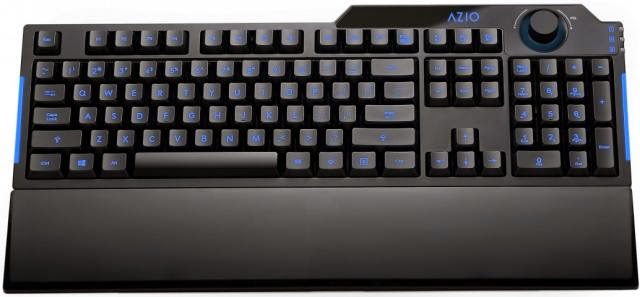
Azio L70

I got to tell you, I really like this keyboard. It is a lot better than the Logitech $9 specials. It is way heavier and more sturdy. It stays in place nicely. The keys have a much better feel and they press and respond like no other keyboard I have used. I immediately felt like I could type faster on it.

There was just one little problem… This keyboard does not work on Linux. The volume knob (which I love) and the standard keys all work, but the ctrl, meta, alt and menu keys all do nothing. After searching their website, it was confirmed. They do not support Linux at all.

It was not going to be worth it to send it back. Worst case scenario, I would take it to work and use it on my Windows machine. But I thought, what if just maybe, I could write a driver for it? I have never written a Linux driver, or worked with USB, or written in C, but how hard could it be?